Run multiple photography studios from one Peasier workspace — switch locations, assign per-studio staff roles, and keep galleries and payments organized.
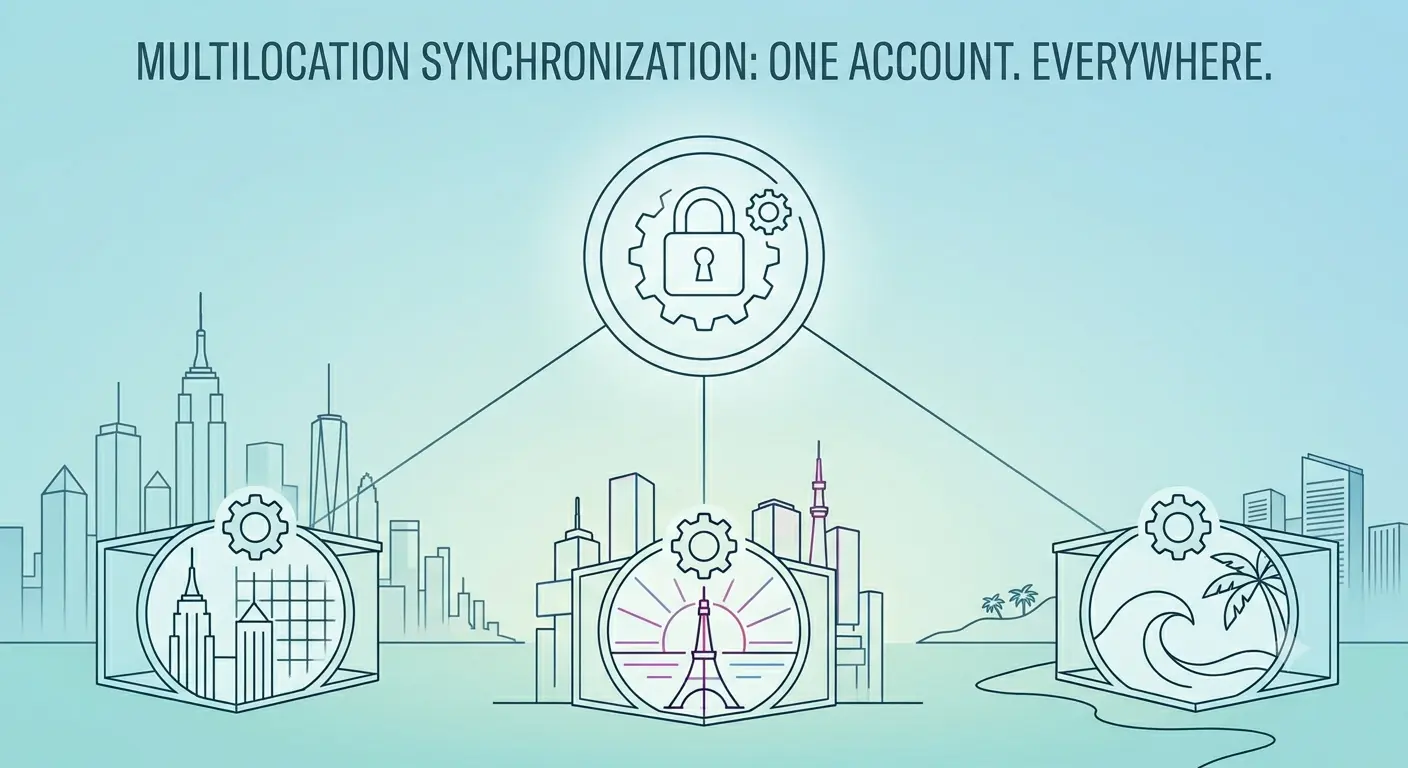
Your business has outgrown a single address. Maybe you opened a second studio across town, added an event pop-up space, or run a main location plus a satellite editing suite. Either way, the challenge is the same: every studio needs its own team, bookings, and payments — without you juggling separate logins or losing track of what's happening where.
Peasier's multi-location feature is built for exactly that. It lets photography studios run several locations inside one account, so you can switch between studios in a click while keeping each one's galleries, bookings, payments, and team neatly separated — and your client list shared across all of them.
Why managing multiple photography studios gets messy
Studios with more than one location run into the same headaches again and again:
- Working in the wrong studio — You create a gallery or invite a team member, then realize it landed in the wrong location.
- Settings scattered everywhere — Addresses, payments, and team details live in different tools for each branch, so nothing feels joined up.
- Confusing access — An editor needs access at one studio but not another, and you don't want to re-invite people every time.
- Repeat clients fall through the cracks — Someone who shot with you downtown books at your uptown studio, and now they're a "new" client with none of their history.
- Paying twice — Adding a studio shouldn't mean a second subscription or losing sight of how much you're using.
Without a system built for multiple locations, you spend more time coordinating than serving clients.
How Peasier organizes multiple studio locations
Peasier keeps things simple with two layers:
- Your business — The top level that holds your subscription and plan, your billing, your team owners and admins, and your shared client list.
- Your locations — Each individual studio, with its own profile, address, payments, team, galleries, and bookings.
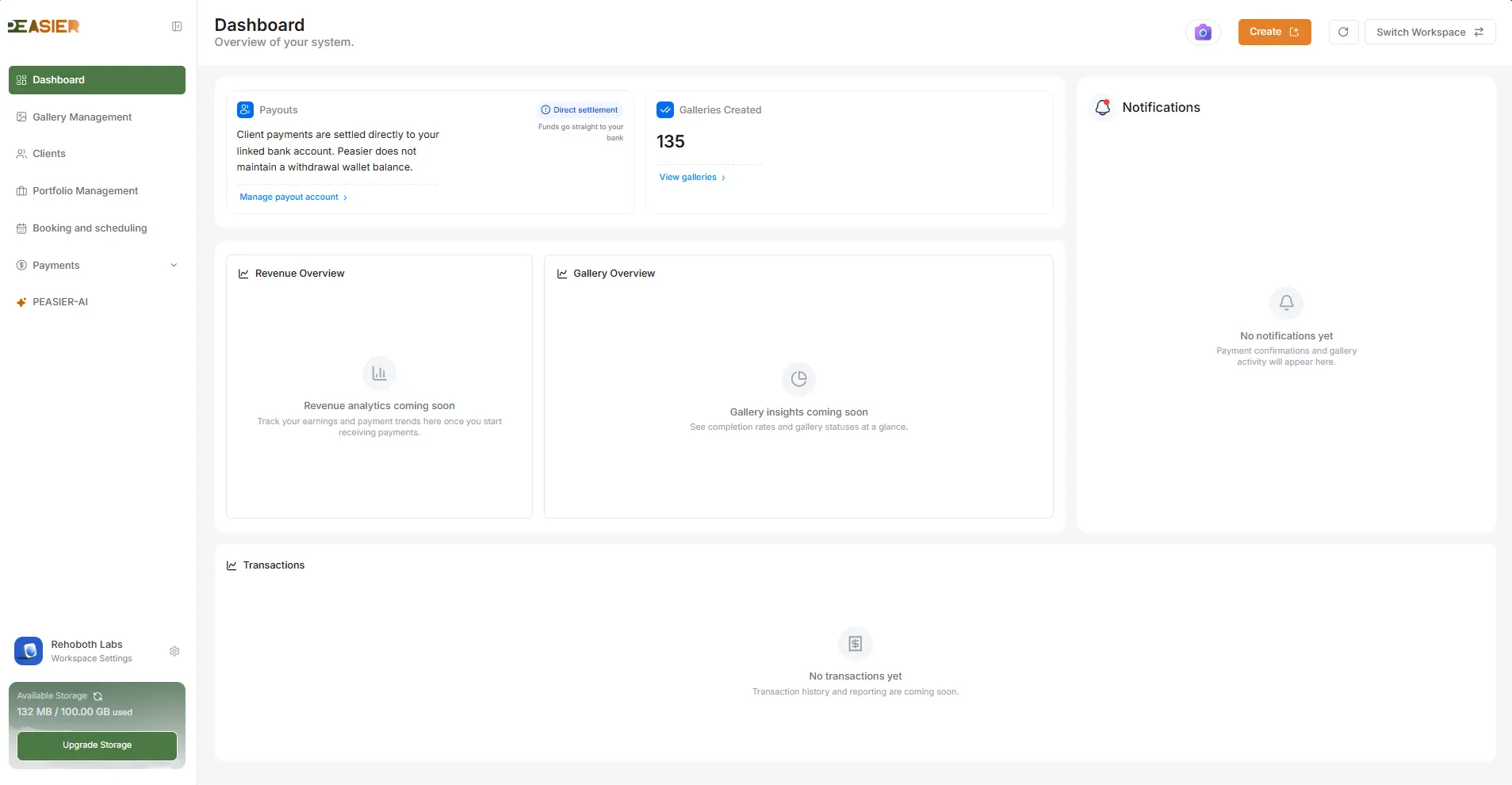
From your dashboard, you pick which studio you're working in. Galleries, bookings, and staff actions all follow that choice — while owners and admins can still see across every location.
What's shared across studios — and what stays separate
The most important thing to understand about multi-location is what belongs to the whole business versus what belongs to each studio:
| Stays separate per studio | Shared across your business |
|---|---|
| Galleries and photos | Your subscription and plan |
| Bookings and sessions | Billing |
| Invoices and payments | Your client list |
| Session types and packages | Team owners and admins |
| Team members and roles | Your brand |
| Studio settings |
In plain terms: the day-to-day work lives inside each studio, while the things that define your whole business — your plan, your clients, and the people who run everything — are shared. That's what lets you keep studios cleanly separated without re-entering the same information over and over.
Switching between your studios
When your account has more than one location, an Active Location selector appears in the sidebar. It shows:
- The studio you're currently working in
- Your role there (Owner, Admin, or a studio-specific role)
- A Switch Location menu listing every studio you can access
Pick a different studio and Peasier switches you over right away — refreshing your view so you're always looking at up-to-date information for the right location.
From the bottom of that menu, Manage all locations takes you straight to your full list of studios.
Managing every studio from one place
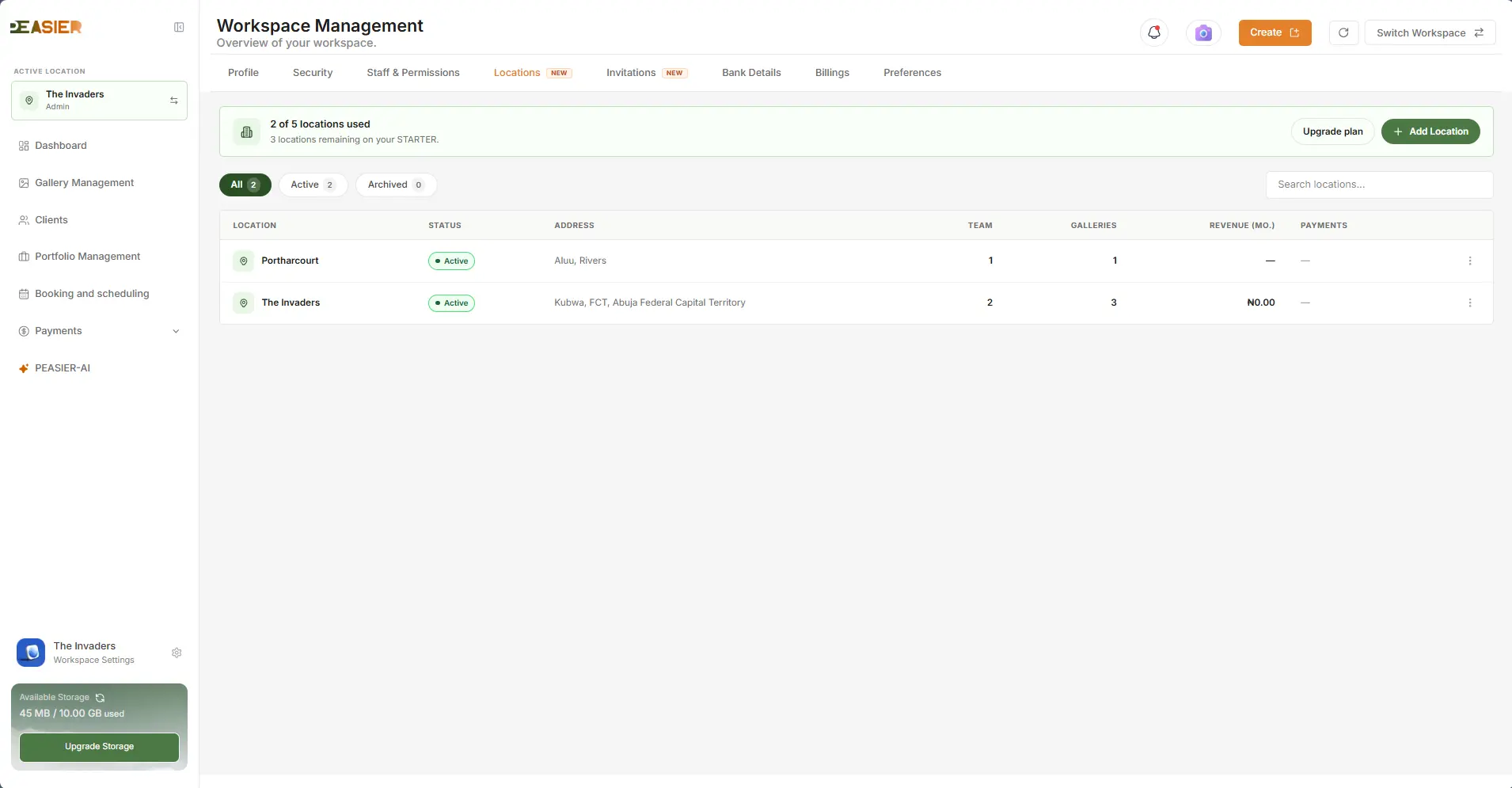
The Locations page is your home base for every studio in the business.
At the top, a banner shows how many studios you're using versus your plan limit (for example, "2 of 5 locations used"). When you reach the limit, it turns red and points you to archive a studio or upgrade. Owners and admins see an Add Location button whenever there's room.
Below that, you can:
- Filter by all, active, or archived studios
- Search by studio name
- See at a glance — status, city, team size, gallery count, bookings this month, and payment status for each studio
Click any studio to open its details.
Adding a new studio in minutes
Owners and admins add a studio through a short, guided setup:
Step 1 — Details
- Studio name (what your team and clients see)
- Address — street, city, state, country, and optional postal code
- How many staff work there
- Optional phone number and contact email
Step 2 — Review
- Check everything looks right before you create it
- Payments for the new studio start from your workspace's bank details, and you can add staff and set their roles once it's created
When it's done, you're back on your locations list with a confirmation. If you've reached your plan limit, Peasier lets you know and pauses creation until you archive a studio or upgrade.
Setting up each studio its own way
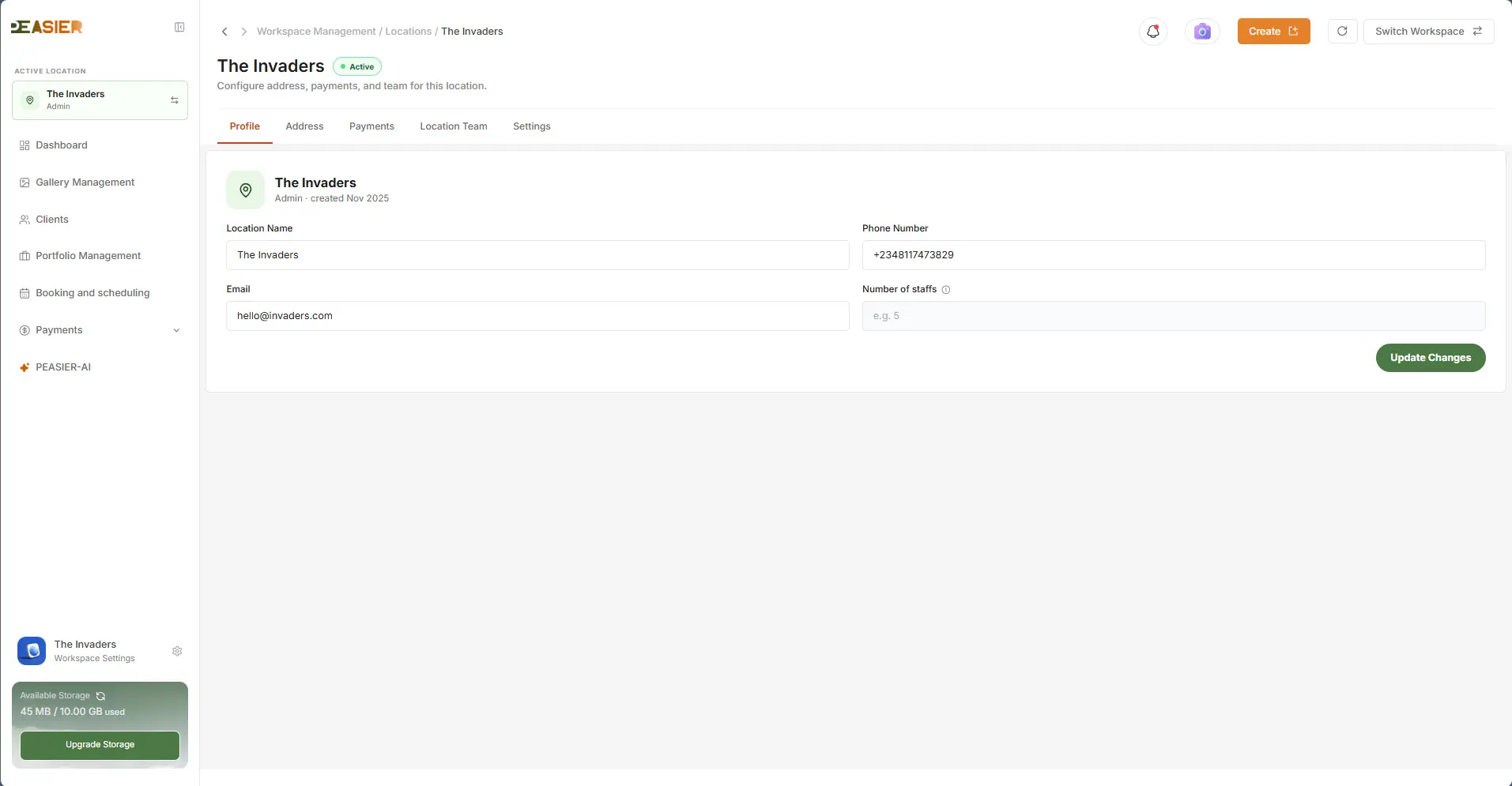
Every studio has its own details area with five tabs:
- Profile — The studio's name and core details
- Address — Where the studio is located
- Payments — How that studio gets paid, and its connection status
- Location Team — The staff and roles for that studio
- Settings — Other studio-level options
Each studio can have its own payment connection, so the money from a booking lands in the right account for that location. Owners and admins can update details, manage the team, and archive a studio when needed.
One client list across every studio
Here's something studios with separate accounts can't do: in Peasier, your clients belong to your whole business, not to a single studio.
So when a client who first booked at your downtown studio comes back to book uptown, they're the same client — their details and history carry over instead of starting from scratch. Each studio's team sees the clients relevant to their location, while you keep one clean, unified client list across the business.
Giving your team the right access
Multi-location isn't only about addresses — it's about who can do what, and where.
Peasier handles roles two ways:
- Owners and admins can work across every studio automatically — no need to add them to each location one by one.
- Studio-specific roles (Location Admin, Photographer, Editor, or Member) apply only at the studios where you've assigned that person.
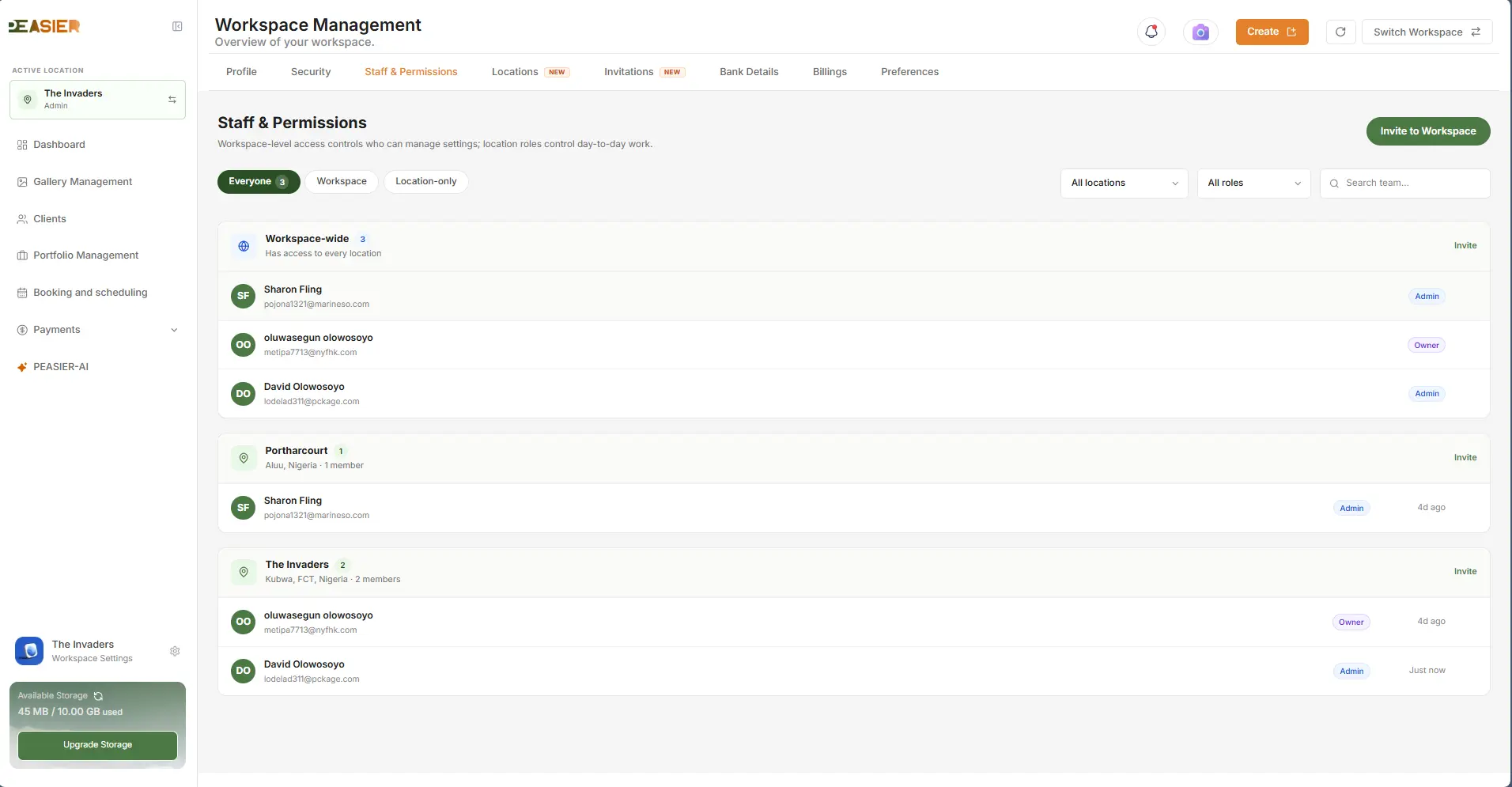
The same person can even hold different roles at different studios — a Photographer at Downtown and an Editor at Uptown, for example. In your staff directory, people are grouped into your business-wide team (owners and admins) and per-studio teams. You can filter by studio, role, or search by name, and when you set someone's role you choose the studio and the role for that studio — so access never spills from one location into another.
Pausing a studio without losing anything
Need to close a seasonal studio for the off-season, or pause a pop-up between events? Archive it instead of deleting it.
Archiving hides a studio from new bookings but keeps all its galleries, invoices, and history safe — and archived studios don't count toward your plan limit, so you can pause a location and free up room without paying for it. You can restore it whenever you're ready (just re-invite the team when you do).
Peasier also protects your clients along the way: you can't archive your only studio, and you can't archive a studio that still has upcoming confirmed bookings — so no one ever shows up to a session at a studio you've quietly switched off.
Your studios stay separate and secure
Behind the scenes, Peasier makes sure every change saves to the studio you're actually working in — so a gallery meant for Downtown never ends up in Uptown by mistake. Each studio's galleries, payments, and settings stay walled off from the others, automatically. You get one tidy view across the whole business without anything bleeding from one location into another.
What multi-location management means for your studio
Running several studios in Peasier turns a growing business into one simple system:
- One login, every studio — Switch between locations in seconds instead of juggling accounts.
- Consistent brand, local identity — Your brand stays the same everywhere, while each studio keeps its own address, contact details, and team.
- One client list — Repeat clients are recognized across studios, so their history follows them.
- Clear team boundaries — Give photographers and editors access only where they need it.
- Predictable growth — See your plan usage upfront and archive instead of delete when you reorganize.
- Full visibility — Bookings, galleries, team size, and payment status for every studio, in one place.
Whether you run two neighborhood studios or a regional brand with a central team, you stay in control without losing the local feel each studio needs.
Frequently asked questions
Can one person work at more than one studio? Yes. Owners and admins have access across every studio automatically. Everyone else is assigned per studio, and the same person can hold different roles at different studios — say, Photographer at one and Editor at another.
Can a client book at more than one of my studios? Yes. Your client list is shared across your whole business, so a repeat client is recognized no matter which studio they book — their details and history carry over instead of starting fresh.
What happens to my work when I archive a studio? Nothing is lost. Archiving hides the studio from new bookings while keeping all its galleries, invoices, and data safe, and archived studios don't count toward your plan limit. Owners can restore it at any time. You can't archive your only studio, or one with upcoming confirmed bookings.
Do I need a separate subscription for each studio? No. One subscription covers your whole business, and your plan sets how many studios you can run. You'll see how many you've used versus your limit, and you can upgrade if you need more room.
Will payments work separately for each studio? Each studio has its own Payments tab and connection status, so bookings are paid into the right account for that location. New studios start from your workspace bank details so you can get up and running quickly.
Get started
If you're already on Peasier:
- Open your Locations page
- Check your plan usage and add your next studio
- Invite staff and give them studio-specific roles
- Use the Active Location selector whenever you move between studios
New to Peasier? Start with what Peasier is, or create your free account and set up your first studio — then add more as your business grows.